
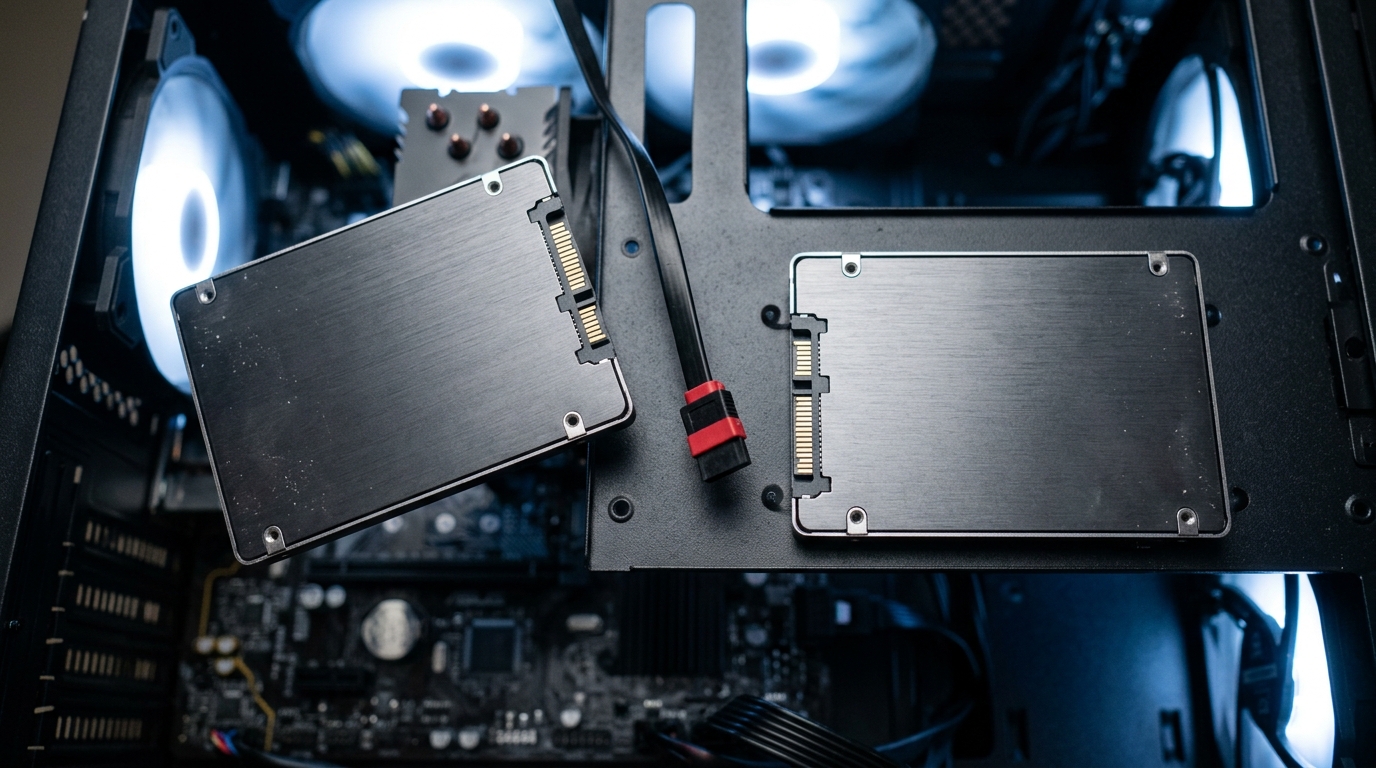
Adding a Second SSD Shouldn’t Be Complicated, But It Often Is
You add a second SSD to a workstation, power it back on, and get a black screen or an error that says “Reboot and Select proper Boot device.” The machine that was working fine an hour ago now won’t start. This is more common than it should be, and the causes are almost always fixable without replacing anything.
For a small business, a workstation that won’t boot means someone can’t work. If it’s a shared machine or a server, it can mean more than one person is affected. The good news is that a systematic check, starting with the simplest things first, usually gets you back up in under an hour.
Start With the Obvious Before You Panic
The first thing to check is physical connections. When you install a new drive, it’s easy to accidentally nudge a RAM stick or partially unseat a GPU. Pull the RAM sticks out, reseat them firmly, and make sure the GPU power connectors are still solid. A loose connection is the most common culprit and the easiest fix.
If the connections look fine, go straight to the boot order. Your BIOS may have automatically set the new SSD as the primary boot device. Since there’s no operating system on it, the machine can’t boot. Enter BIOS setup on startup and check which drive is listed first. Change it back to your original Windows drive and save. If you’ve also been dealing with Secure Boot issues on your systems, that post is worth reading alongside this one.
The SATA and M.2 Conflict Most People Don’t Know About
This one trips up even experienced IT people. On many motherboards, installing an M.2 SSD disables specific SATA ports. The motherboard shares bandwidth between the M.2 slot and certain SATA ports, and when the M.2 is populated, those SATA ports go dark. Your original SATA drive simply disappears from the system.
The fix is to check your motherboard manual, find out which SATA ports are affected by the M.2 slot you used, and move your SATA drive to a port that stays active. The Windows Club has a clear breakdown of this specific conflict if you want to read through the full technical detail.
When the Problem Is Deeper Than a Drive
If the machine won’t POST at all, listen for beep codes and look at the motherboard LED indicators. Most modern motherboards have LEDs labeled for CPU, DRAM, VGA, and boot. If the DRAM light is on, your RAM isn’t seated correctly or one stick has failed. Test sticks one at a time to isolate the bad one.
If you suspect misconfigured BIOS settings are the issue, resetting to factory defaults can clear it. You can do this inside BIOS if you can get in, or by removing the CMOS battery for a few minutes with the machine powered off. Reinstall it with the correct polarity and the BIOS resets.
One more thing worth checking: if the new SSD isn’t being recognized at all, remove it, boot into Windows normally, and check whether a BIOS update is available from your motherboard or PC manufacturer’s website. Some newer drives require a BIOS version that supports them. Don’t skip this step, and don’t interrupt a BIOS update mid-process. A failed BIOS update can brick the motherboard.
Keeping Workstations Stable Across Your Office
Storage upgrades are routine, but they have a real failure rate when done without checking compatibility first. If you’re managing multiple workstations, it’s worth documenting which motherboard models you have and pulling the manuals before any hardware change. Storage issues can also combine with other Windows problems. There’s a separate Windows 11 bug that can consume hundreds of gigabytes of storage space, which is worth knowing about if you’re already dealing with drive management on your fleet.
A methodical approach, connections first, then boot order, then port conflicts, then BIOS, gets most machines back without a service call. If you’re managing this across multiple employees and don’t have time to troubleshoot each one, booking an IT assessment can help you get ahead of hardware compatibility issues before they cause downtime.
FAQ
Why does my PC say “Reboot and Select proper Boot device” after adding an SSD?
Your BIOS changed the boot order and is now trying to start from the new SSD, which has no operating system on it. Enter BIOS setup, find the boot order screen, and set your original Windows drive back as the first boot device. Save the settings and restart.
Can installing an M.2 SSD disable my existing SATA drive?
Yes. On many motherboards, certain SATA ports are shared with M.2 slots. When you populate an M.2 slot, the connected SATA ports go inactive. Check your motherboard manual to identify which ports are affected and move your SATA drive to an unaffected port.
How do I reset BIOS if I can’t get into the BIOS screen?
Power off the machine, open the case, and locate the small coin-shaped CMOS battery on the motherboard. Remove it gently and wait a few minutes, then reinstall it with the correct polarity. This resets BIOS to factory defaults without needing to access the BIOS menu.
My PC won’t boot after adding a second SSD. Could it be a RAM problem?
It’s possible, especially if you accidentally nudged a RAM stick during installation. Reseat all RAM sticks first. If the motherboard has a DRAM LED indicator and it’s lit, test one stick at a time to find out whether a stick is faulty or just wasn’t seated properly.